
How to Use an AI Video Ad Maker for E-commerce
Use our automated video ads workflow to convert product concepts into structured ad creatives with faster iteration.
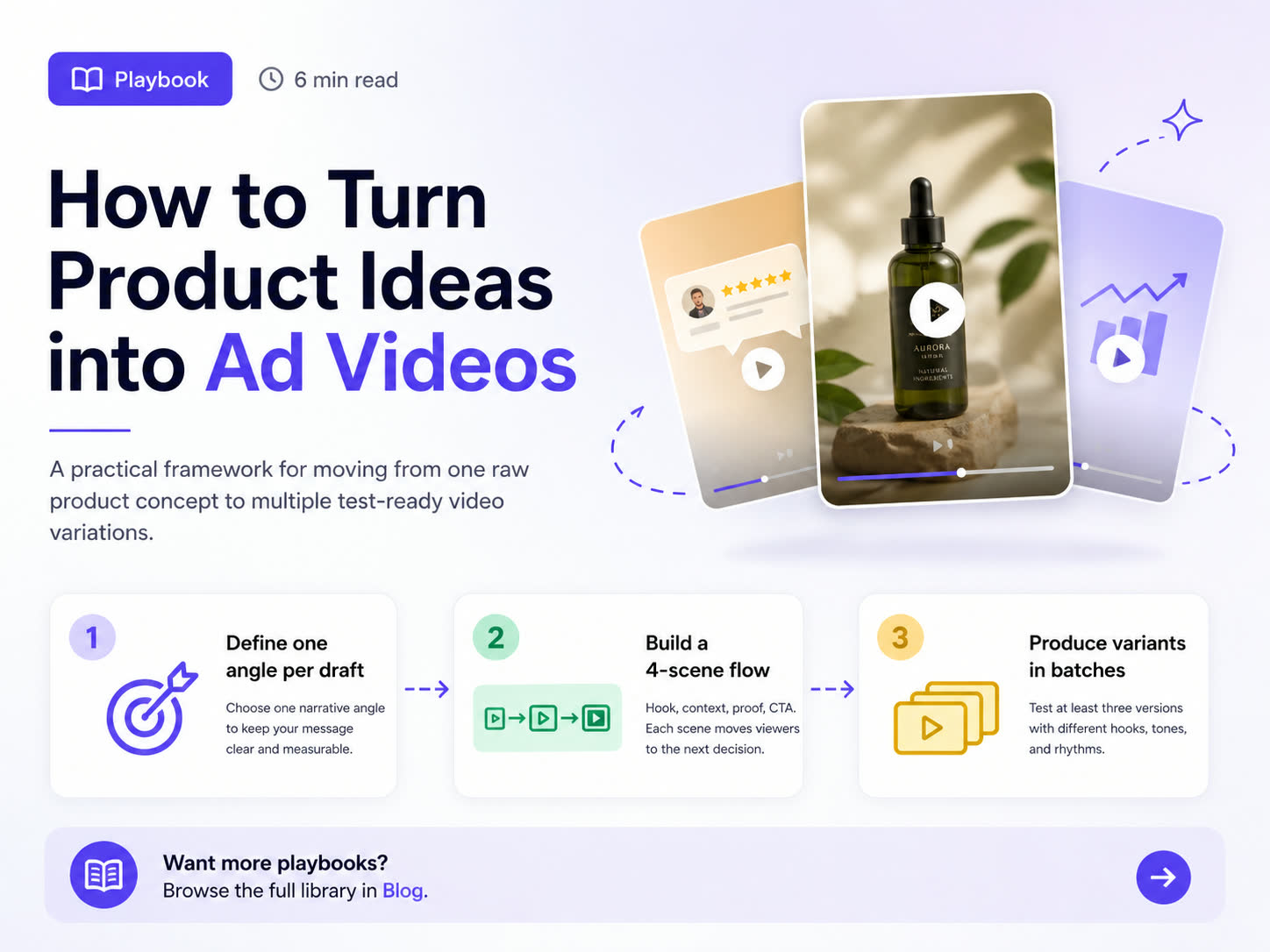
Most marketing teams don't fail because their video production quality is bad. They fail because their iteration speed is too slow. With Advivi, you can turn a raw product idea or a single reference image into a fully assembled video ad in minutes. Here is the exact workflow using our AI Chat and Timeline Editor.
Step 1: Upload Your Virtual Avatar or Reference Image
Consistency is the hardest part of AI video. Instead of starting from scratch, begin in the Advivi AI Chat Panel by uploading a product image or selecting a Virtual Avatar.
When you upload an image, Advivi securely stores it and passes it as a reference URL to our image and video generation models. This ensures your subject's visual identity remains consistent across every frame of the ad.
Step 2: Let AI Generate the Storyboard
Type a simple prompt like: "A TikTok ad for my skincare product, focusing on morning routines."
The AI Chat will instantly generate a structured Storyboard. For each scene, Advivi automatically generates a high-quality reference image based on the AI's prompt and your uploaded Avatar. You'll see these images appear in a grid right inside the chat panel.
Step 3: Edit and Regenerate Specific Frames
Not happy with Scene 2? You don't have to rewrite the whole script. Simply click the Edit (Pencil icon) on that specific storyboard frame. You can tweak the prompt (e.g., change "bright lighting" to "moody lighting") and click Retry. Advivi will regenerate just that single image, saving you credits and time.
Step 4: Generate Video Segments
Once your storyboard images look perfect, select the frames you want to animate and click Generate Selected Videos.
Advivi uses advanced models (like Veo) to animate each image into a video segment. Our system automatically constructs the perfect motion prompt, adding cinematic camera movements while maintaining the exact composition of your generated images.
Step 5: Voiceover, BGM, and Timeline Assembly
After the video segments are ready, click Generate VoiceOver & BGM. Advivi will synthesize a natural-sounding voiceover and select matching background music.
Finally, click Add All Videos to Timeline. Advivi will automatically drop your generated video segments, the merged TTS audio track, and the BGM directly into the multitrack timeline. From there, you can trim clips, adjust audio levels, and export your final ad!
Need an Amazon-specific execution path?
If this general concept-to-ad workflow is really for Amazon sellers, move into our Amazon AI video generator workflow next. It is better tuned for listing assets, product detail page videos, and Sponsored Brand Video structure.
For more specific branches, use the Amazon ads AI video generator guide, the Amazon product video maker for listings playbook, or the Amazon Sponsored Brand Video with AI guide.
Ready to accelerate your video production?
Stop waiting weeks for creative deliverables. Use Advivi's AI video generation tools to turn your product ideas into testable ad drafts in minutes.
Start Creating for Free